Multi Roblox Manager
A Windows app for running several Roblox accounts at the same time, all from one window. It keeps your accounts in a list, launches each one into its own Roblox window, shows the games side by side, keeps them from getting kicked for being idle, rejoins them when they disconnect, and can replay recorded mouse/keyboard macros on a schedule.
Download: grab
MultiRoblox.exefrom the latest release. No install needed, just run it. (Windows may show a SmartScreen warning because the exe isn’t signed: click More info → Run anyway.)
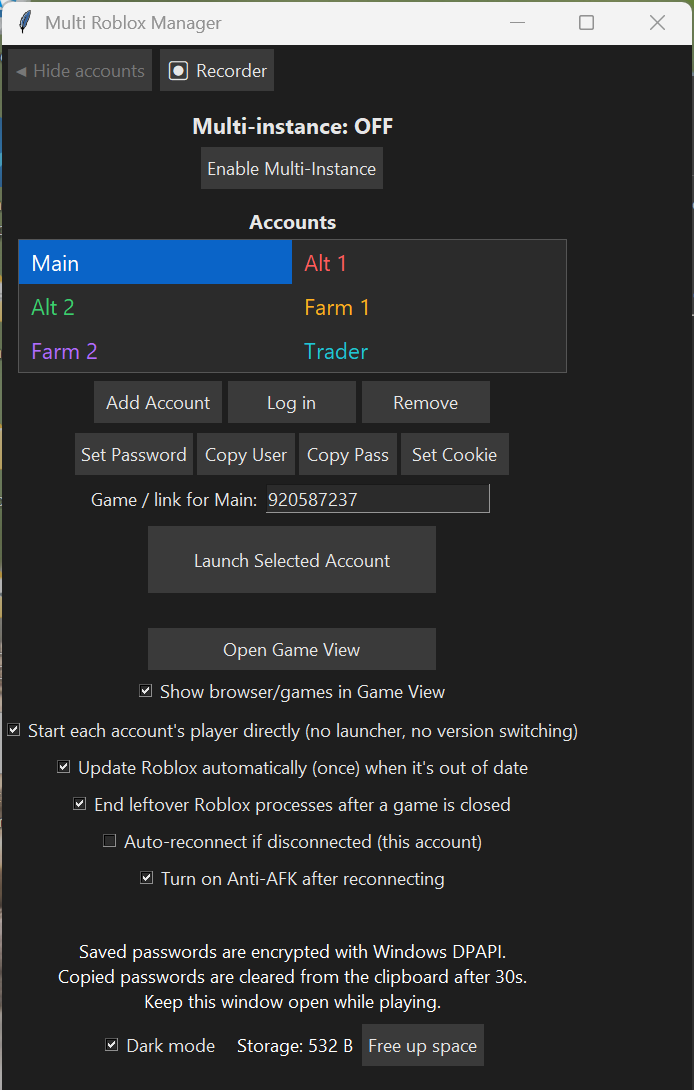
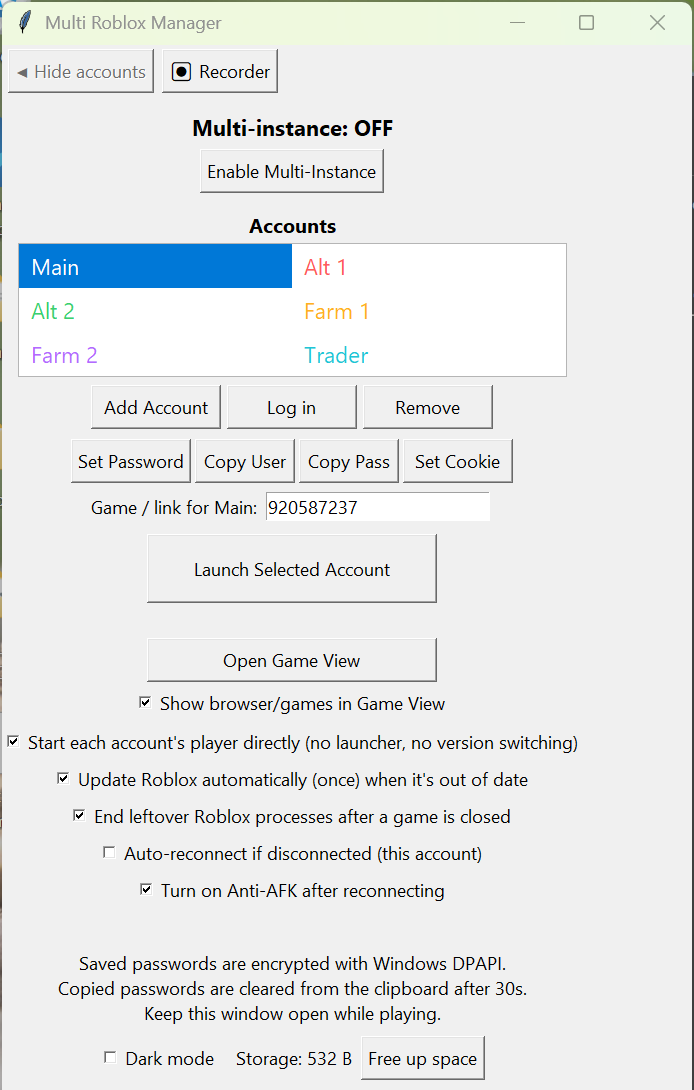
The main window, in dark mode and light mode (example accounts).
Contents
- What’s new
- Quick start
- Accounts
- Launching games
- Game View
- Anti-AFK
- Auto-reconnect
- Recorder
- Other features
- Where your data is stored
- Building from source
- Safety notes
What’s new
v1.3: Anti-AFK is remembered per account. If Anti-AFK was on for an account, its game gets Anti-AFK switched on again (with that account’s own interval) whenever it’s launched, reopened or rejoined, so you don’t have to tick it again each time.
v1.2: Hidden games left behind are brought back. If the app closed while a game was hidden in Game View (for example a crash while you were in Single view), that game kept running invisibly with no way to see or close it. Now, when the app starts, it finds such games, opens Game View and shows them as “Recovered game” so you can play or close them.
v1.1: Auto-reconnect now rejoins the game the account was actually in (the same private server, or the new game it moved to) instead of always using the saved link.
v1.0: First release. See the Releases page for every version.
Quick start
- Run
MultiRoblox.exe. - Click Add Account and give it a name (e.g. “Main”, “Alt 1”).
- Pick one way to sign it in:
- Log in: opens a browser window with that account’s own private profile. Sign in to Roblox normally; it stays signed in, like having a separate browser per account.
- Set Cookie: paste the account’s
.ROBLOSECURITYcookie. This lets the app launch the game directly, without a browser, and is needed for auto-reconnect.
- Optionally type a Game ID, game link, or private-server link into the box.
- Select the account and click Launch Selected Account (or double-click it).
- Repeat for the next account. Each one gets its own Roblox window.
Tip: launch accounts one at a time and let each Roblox window open before starting the next.
Accounts
| Button / control | What it does |
|---|---|
| Add Account | Adds a new account to the list. |
| Remove | Removes the selected account (and its browser profile). |
| Log in | Opens that account’s private browser profile on the Roblox login page. The app never sees what you type there. |
| Set Cookie | Saves the account’s .ROBLOSECURITY cookie (encrypted, see below) so the app can launch it directly. |
| Set Password / Copy User / Copy Pass | Optionally store the username and password, and copy them to the clipboard when you need to type them. A copied password is cleared from the clipboard after 30 seconds. |
| Game ID box | Each account remembers its own Game ID / game link / private-server link. The box shows the one for the selected account. |
| Enable / Disable Multi-Instance | Roblox normally allows only one window at a time. Enabling this holds Roblox’s lock so more windows can open. |
| Dark mode | Switches the whole app to a dark theme (remembered). |
The account list
- Accounts are shown in two columns. Click to select, double-click to launch.
- Reorder by dragging, or right-click → Move to top / up / down / bottom.
- Right-click → pick a colour for the account. The name is drawn in that colour, and its game gets a border in the same colour in Game View.
Launching games
- Direct launch (account has a cookie): the app asks Roblox for a one-time login ticket and starts the Roblox player straight into your game or private server.
- Browser launch (no cookie): opens Roblox in that account’s browser profile; press Play there.
Different Roblox versions per account. Roblox puts some accounts on test “channels” that run a different version, but its launcher only keeps one version per PC, so switching accounts can make Roblox update over and over. By default the app avoids this by starting each account’s player straight from the installed version that matches that account’s channel. If Roblox really is out of date it updates once, then launches.
Game View
Click Open Game View to show the games (and browsers) inside the app, to the right of the account list. The games follow the window while you move or resize it.
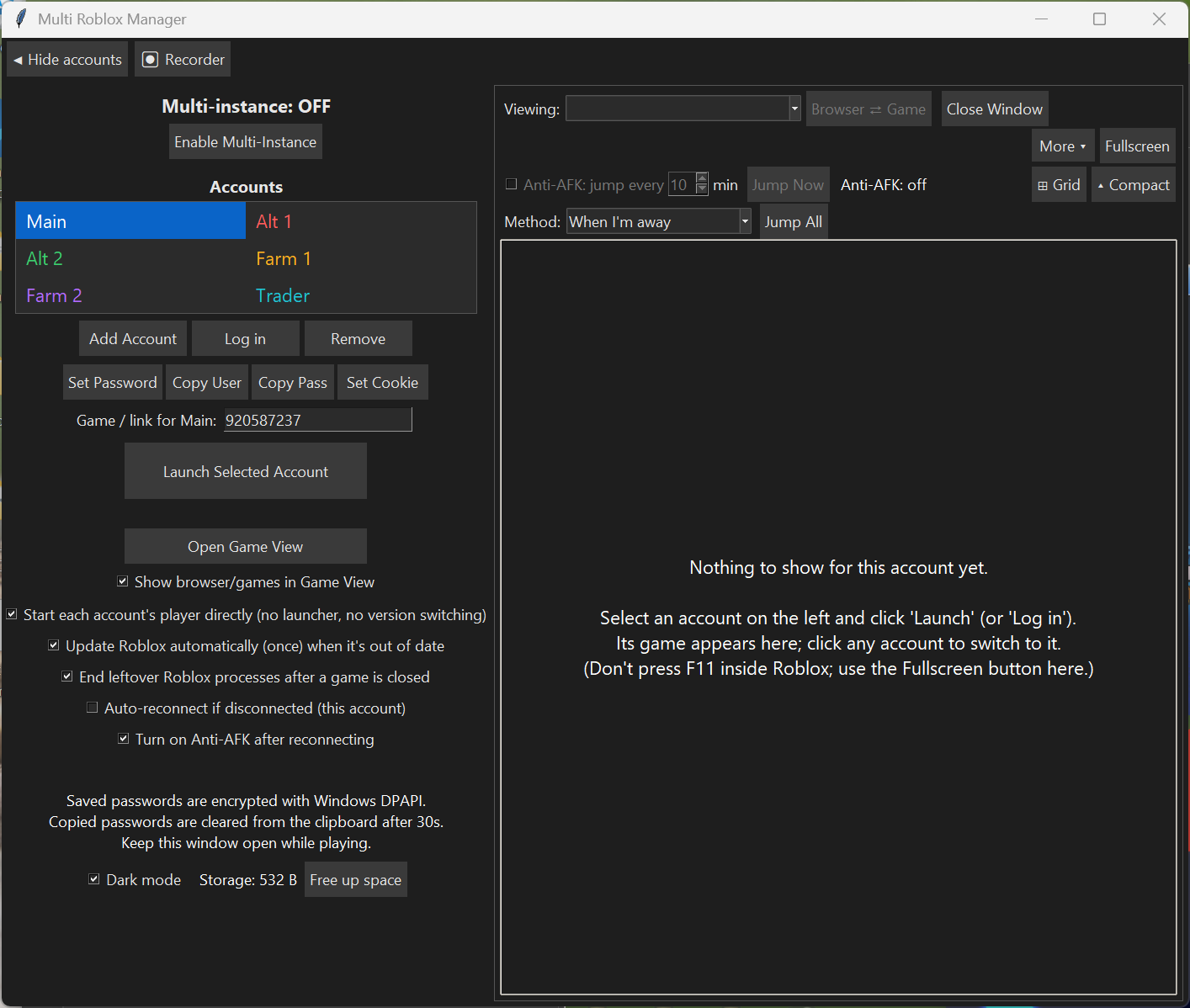 Game View before any game is launched: the toolbar and Anti-AFK strip are on top, and games appear in the big area.
| Control | What it does |
|---|---|
| Viewing | Which account’s window is shown. Clicking an account in the list also switches to it. |
| Browser ⇄ Game | Switch between that account’s browser and its Roblox game. |
| Close Window | Closes the shown game/browser. |
| Fullscreen | Makes the shown game fill the screen. |
| Grid / Single | Grid shows up to 12 games at once (2 side by side, then 2×2, 3×2, 3×3, 4×3). Click a game to make it the current one. Single goes back to one at a time. |
| Hide accounts | Hides the account list so the games get the whole window. |
| Compact / Expand | Compact hides everything except the Anti-AFK strip. |
| More ▾ | Rarely used options: borders on/off and colours, pop a game out into its own window and put it back, close games that freeze, and more. |
Grid extras
- Every game has a coloured border (thicker on the selected one).
- Drag a game’s border onto another game to swap their places. This also swaps them in the account list.
- Pop out moves a game into a normal window; Put back returns it to the grid.
Frozen games. If a game shows “Not Responding” for 30 seconds (a crash), the app closes it and auto-reconnect rejoins it. You can turn this off in the More menu. A frozen game can no longer freeze the app itself.
Reopen last session (N). Relaunches the accounts that were open last time, 10 s apart, into the same game or private server each one was in.
Closing the app also closes the games that were open in Game View.
Recovered games. If an earlier session left a game hidden (for example after a crash), the
app finds it at start-up, opens Game View and shows it as “Recovered game” so you can play or
close it. This is written to error.log.
Anti-AFK
Roblox kicks you after 20 minutes without input. Anti-AFK presses Space (jump) in each game on its own timer, using a real key press (the only thing Roblox reacts to).
| Control | What it does |
|---|---|
| Anti-AFK: jump every N min | How often each game gets a jump. Each account has its own timer. |
| Method: When I’m away | Only jumps while you haven’t touched the mouse/keyboard for a short while, so it won’t interrupt you. |
| Method: Immediately | Jumps on schedule even if you’re using the PC. |
| Jump Now / Jump All | Jump the current game / every game right now. |
Anti-AFK briefly brings the game to the front to press the key, then gives focus back.
Remembered per account. Each account remembers whether Anti-AFK was on and its interval. When that account’s game opens again (launch, Reopen last session or auto-reconnect), Anti-AFK comes back on with the same interval. Switch it off and it stays off next time.
Auto-reconnect
Per account, the app watches for disconnects and rejoins the game for you (needs a cookie and a Game ID / link):
- It reads Roblox’s own log files and rejoins about 8 seconds after Roblox says “lost connection”. Normal server hops are not treated as a disconnect.
- As a backup it checks the account’s Roblox presence every 30 s and rejoins if the account has left the game.
- It rejoins the game the account was actually in, read from Roblox’s log (the same way
Reopen last session does):
- still in the private server from its saved link → back into that same private server;
- moved on to a different game → that game, not the saved one;
- nothing known → the saved link / Game ID.
- The status shows which one it used, e.g. “reconnecting (saved link)…” or “reconnecting (game 123…)…”.
- It stops after 5 attempts in 30 minutes so it can’t loop forever.
- Turn on Anti-AFK after reconnecting switches Anti-AFK back on for the rejoined game.
- Every status change is written to
error.log.
Recorder
A TinyTask-style macro recorder. Show it with the Recorder button in the top bar; it appears under the account list.
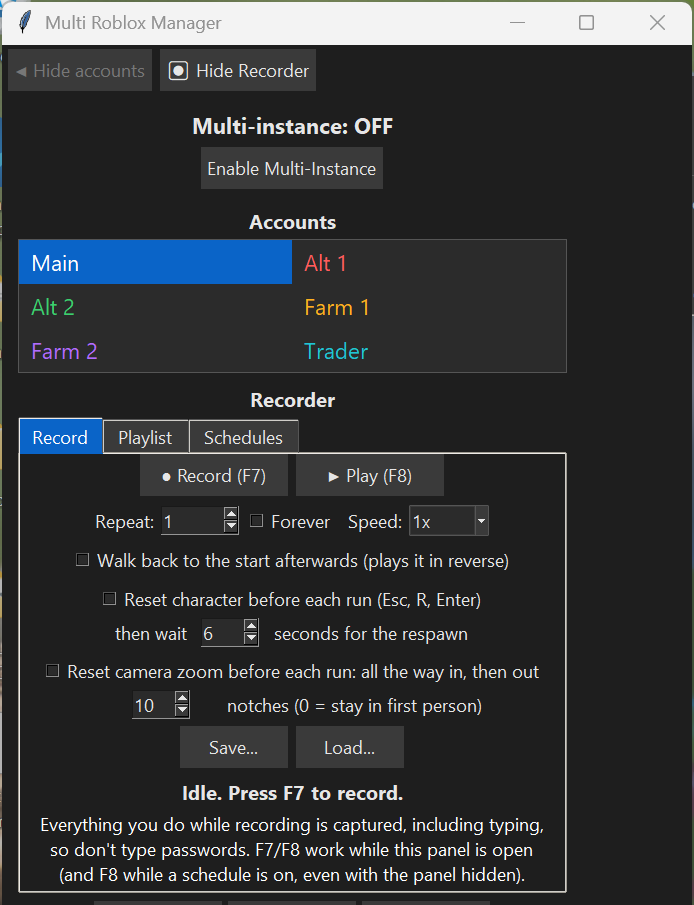
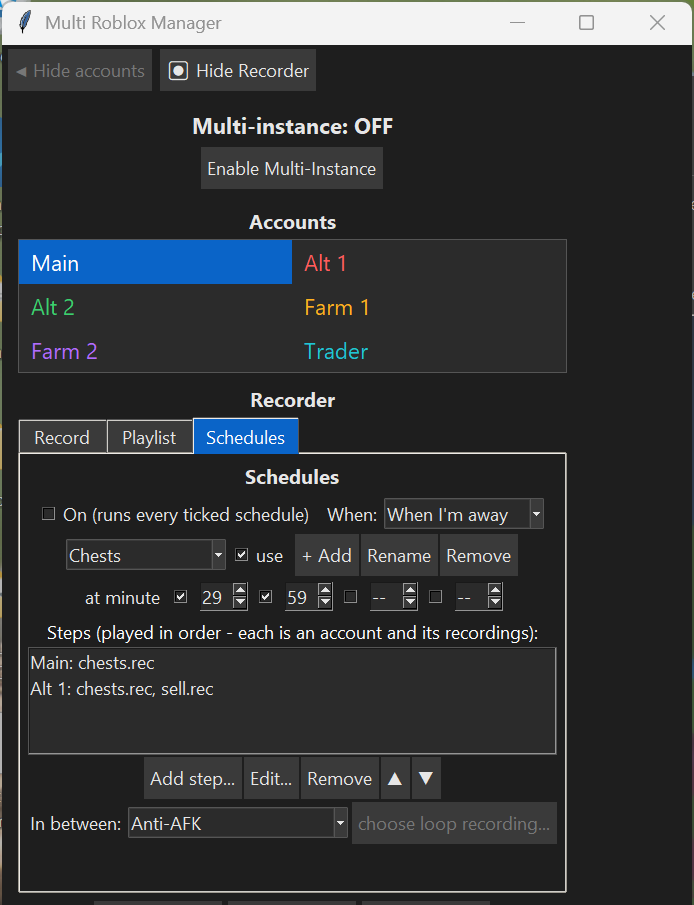
The Recorder's Record tab, and a schedule that plays recordings on two accounts at :29 and :59.
Record tab
- F7 starts/stops recording, F8 plays/stops (while the panel is open).
- Repeat (number of times or Forever) and Speed.
- Save… / Load… recordings as
.recfiles. - Walk back to the start afterwards plays the recording in reverse after each run, so the character ends up where it started.
- Reset character before each run presses Esc, R, Enter and waits a few seconds for the respawn (only works in games that allow resetting).
- Reset camera zoom before each run zooms the camera all the way in and back out a set amount before playing, so runs start from the same view.
- It records everything you type, so don’t type passwords while recording.
Playlist tab. Join several saved recordings back to back (half a second apart) and play them as one.
Schedules tab
- Create named schedules. Each has steps: an account plus the recordings to play on its game.
- Pick up to 4 minutes past the hour to run (e.g. :29 and :59; 60 means on the hour), each with its own on/off tick.
- On (runs every ticked schedule) turns all schedules on/off. When: When I’m away or Immediately.
- In between runs: Anti-AFK, loop another recording, or do nothing.
- Schedules keep running while the panel is hidden. The button then reads “Recorder (schedule on)”. F8 still stops playback.
Other features
- Leftover processes. Roblox sometimes leaves
RobloxPlayerBeta.exerunning after a game closes. The app ends only processes that have no window, plus Roblox’s background--launch-to-trayprocess, including after you close the app. - Free up space. Deletes the browser caches inside each account’s profile while keeping the logins. This also runs automatically at start-up.
Where your data is stored
Everything is stored locally in %APPDATA%\MultiRoblox:
| File / folder | Contents |
|---|---|
accounts.json |
Account names and saved Game IDs/links |
credentials.json |
Cookies, usernames and passwords, encrypted with Windows DPAPI (only your Windows user on this PC can decrypt them) |
settings.json |
App settings, schedules, colours, layout |
profiles\ |
Each account’s private browser profile |
error.log |
Errors and auto-reconnect history |
Nothing is sent anywhere except to Roblox’s own servers.
Building from source
The app is a single Python file (multi_roblox_manager.py) that uses only the standard library
(Tkinter + ctypes). It runs on Windows only.
python multi_roblox_manager.py
To build the exe:
pip install pyinstaller
pyinstaller MultiRoblox.spec --noconfirm
The exe is created at dist\MultiRoblox.exe.
Safety notes
- Never share your
.ROBLOSECURITYcookie. Anyone who has it can sign in as you. The app keeps it encrypted on your PC only. - Running several accounts and using macros/anti-idle tools may go against the rules of some games or Roblox’s Terms of Use. Use it at your own risk.
- This is a fan-made tool and is not affiliated with or endorsed by Roblox Corporation.